Logs
gridmo offers a variety of logging support. By default, gridmo logs are always provided. We also provide the following additional types of logs:
Log files: When selected, all logs are provided from 3rd party power systems software.Stand-alone folders: When selected, folders are created which contain all files necessary to run a particular test outside of the gridmo software platform. These 'Stand-alone folders' are tailored to each 3rd party power systems software. 'Stand-alone folders' are compressed (.zip) and the contents must be extracted before use. See Stand-alone folders below for full vs lite variants.Working files: When selected, all working files are provided. This includes raw output files (e.g.outfiles) generated by 3rd party power systems software.
When Working files is selected, the outputs folder may require significant storage capacity due to the size of the raw output files.
Stand-alone folders
When you request stand-alone folders on the simulation launch window, the Engine writes a stand-alone package into each Task's _Logs zip under the simulation output folder.
Which package you get is controlled by an Engine setting, not by the launch window:
- Open the gridmo Engine Settings window.
- Go to the Advanced tab.
- Set Standalone type to either:
- Full (default): writes a complete
STANDALONEfolder. - Lite: writes a reduced
STANDALONE-LITEfolder (see below).
- Full (default): writes a complete
- Save settings and restart the Engine for the change to apply.
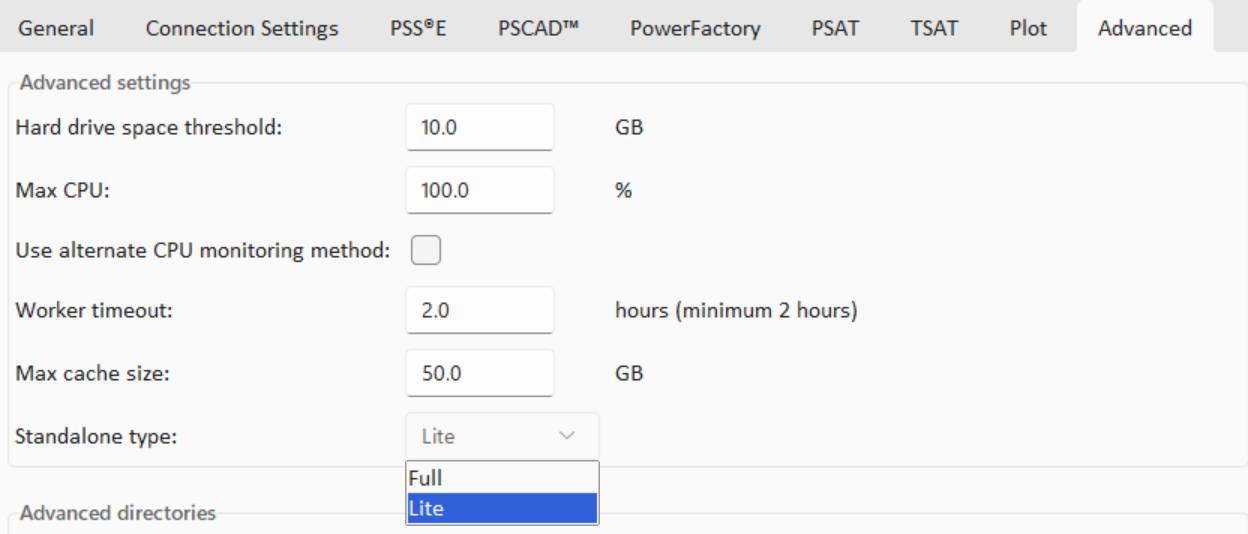
Full (STANDALONE)
The full stand-alone folder contains everything needed to re-run that Task outside gridmo (models, scripts, and supporting files as produced for the relevant power systems software).
Lite (STANDALONE-LITE)
STANDALONE-LITE is a space-saving variant of the full stand-alone folder. Files whose content already exists in the simulation's shared inputs (_Inputs.zip) are omitted from the lite folder. When files are omitted, _Instructions.txt inside STANDALONE-LITE lists each omitted file's path in _Inputs.zip and where to place it in this folder.
Restoring a STANDALONE-LITE folder
Copy the omitted files back into STANDALONE-LITE so it has every file needed to reproduce the test.
- Extract the Task's
_Logszip and openSTANDALONE-LITE/_Instructions.txt. - Copy each listed file out of
_Inputs.zipto the path shown in that file.
_Inputs.zip is in the simulation output folder, beside _Logs:
{sim_output}/_Inputs.zip
{sim_output}/_Logs/<task>.zip
For example, _Instructions.txt may look like:
From _Inputs.zip  Save as this file
----------------  -----------------
psse/solar.sav    solar.sav
psse/solar.dll    Models/solar.dll
Copy psse/solar.sav out of _Inputs.zip and save it as solar.sav in this folder. Create the Models folder if it is missing, then save psse/solar.dll there as solar.dll.